Documentation
Gemini Guide
Follow these steps to sign in to Gemini with the Google account automatically delivered with your order.
1. How to sign in to Gemini
- 1
- 2
Enter the delivered email and password
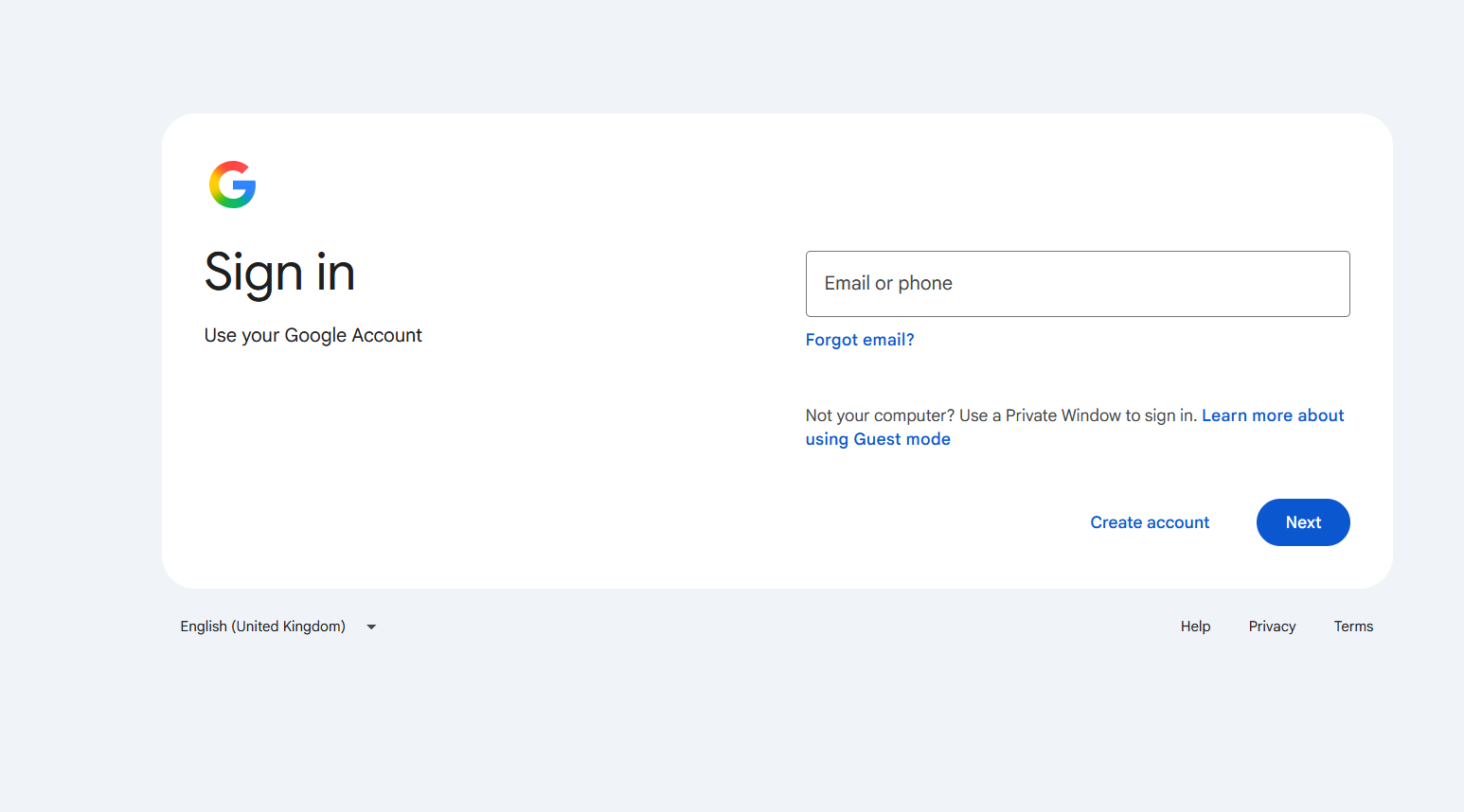
Enter the email address automatically delivered with your order and click Next. On the following screen, enter the delivered password and click Next again. Do not use your personal account details.
Enter the email address automatically delivered with your order and click Next. On the following screen, enter the delivered password and click Next again. Do not use your personal account details. - 3
Choose Google Authenticator
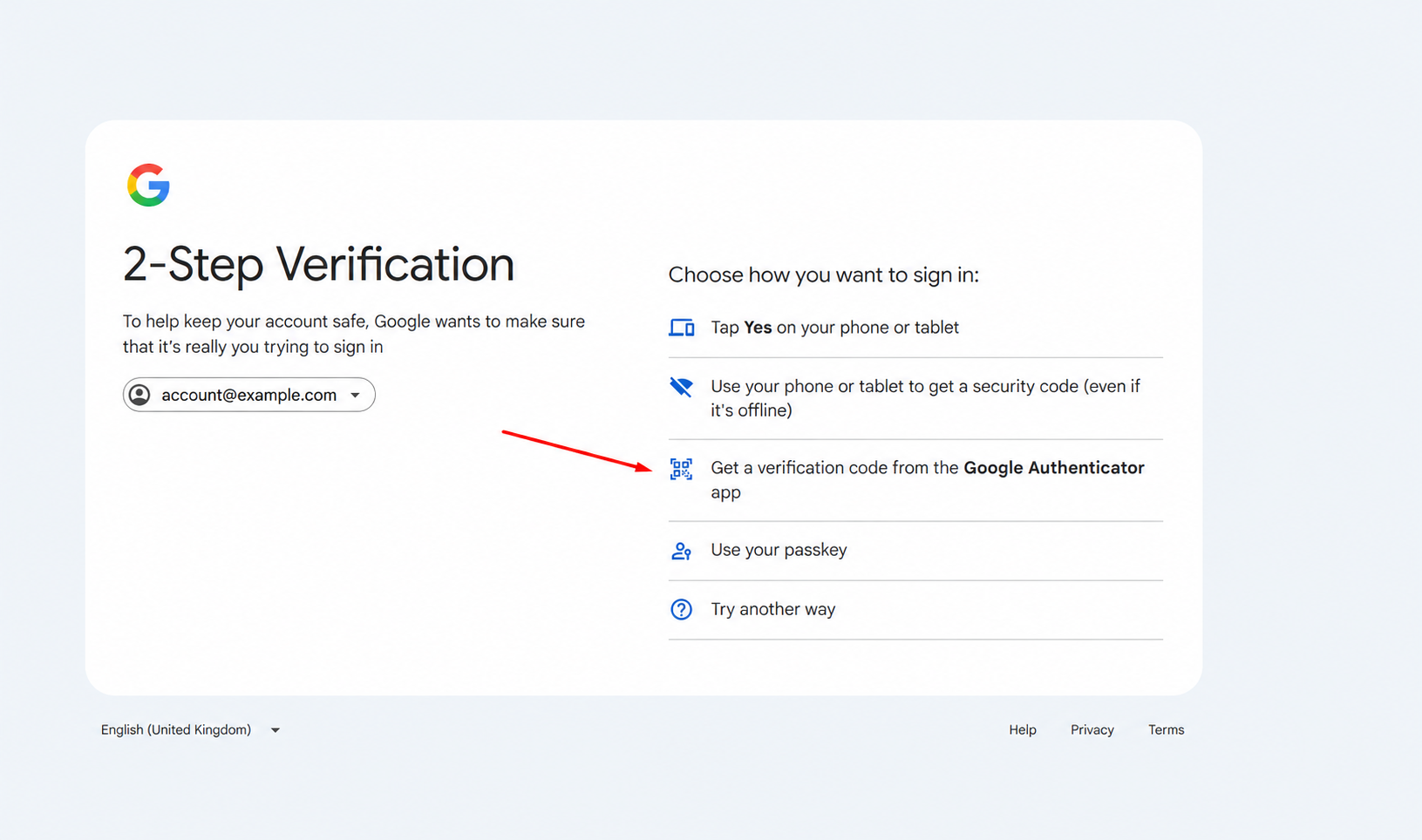
On the 2-Step Verification screen, select “Get a verification code from the Google Authenticator app.” If it is not shown, click Try another way. Keep the code entry screen open.
On the 2-Step Verification screen, select “Get a verification code from the Google Authenticator app.” If it is not shown, click Try another way. Keep the code entry screen open.
2. How to get your 2FA code
A 2FA key is a secret used to generate codes. These websites are not operated by Google; entering your key shares it with that website. Use only services you trust. Alternatively, add the key to the Google Authenticator app.
- 4
Generate a code with the delivered 2FA key
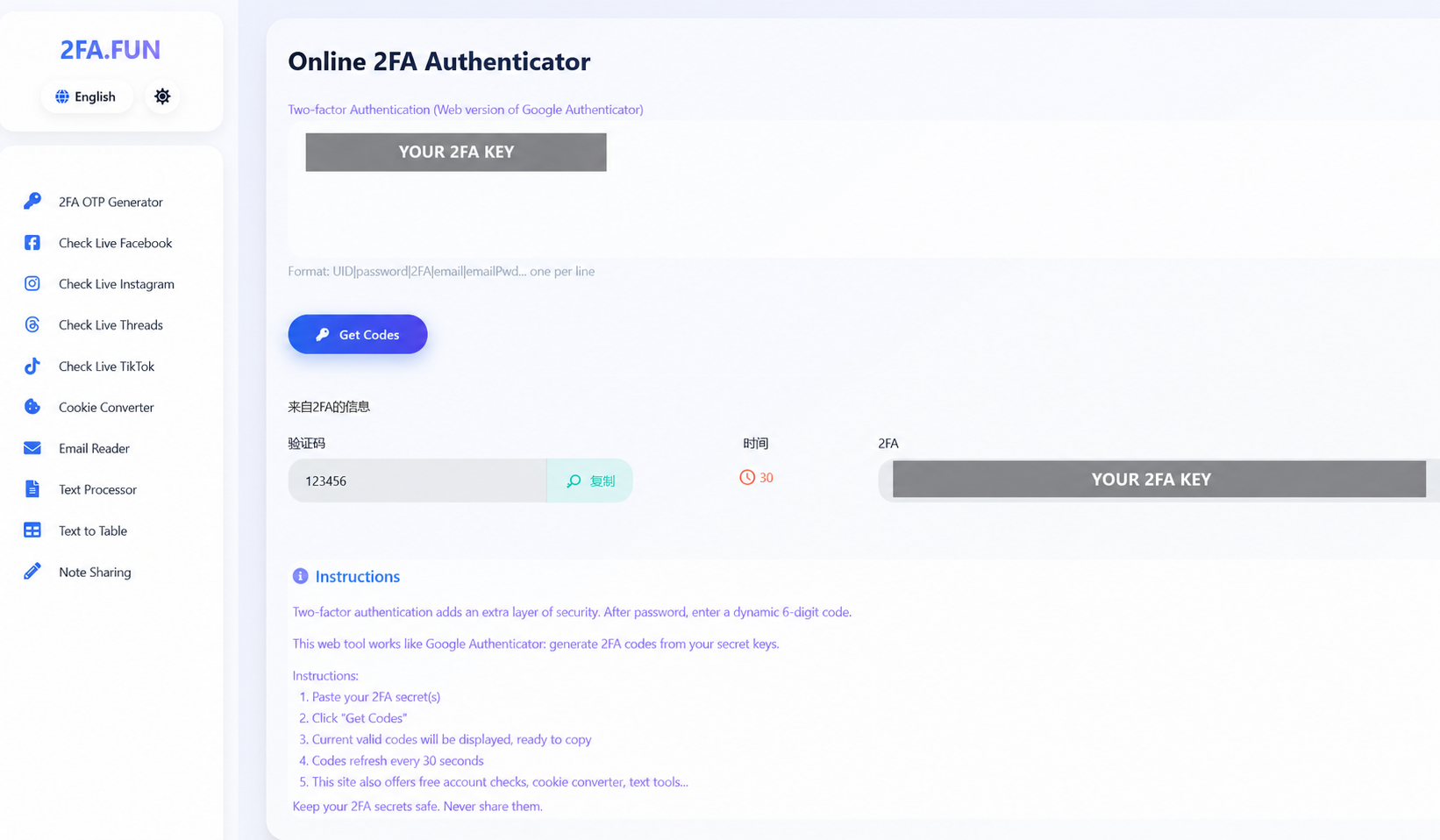
Open one of the websites below in a new tab. Paste the delivered 2FA Key / Secret into the key field, then click Get Codes / Submit. Do not enter your email address or account password in this field.
Open one of the websites below in a new tab. Paste the delivered 2FA Key / Secret into the key field, then click Get Codes / Submit. Do not enter your email address or account password in this field. - 5
Enter the six-digit code on Google
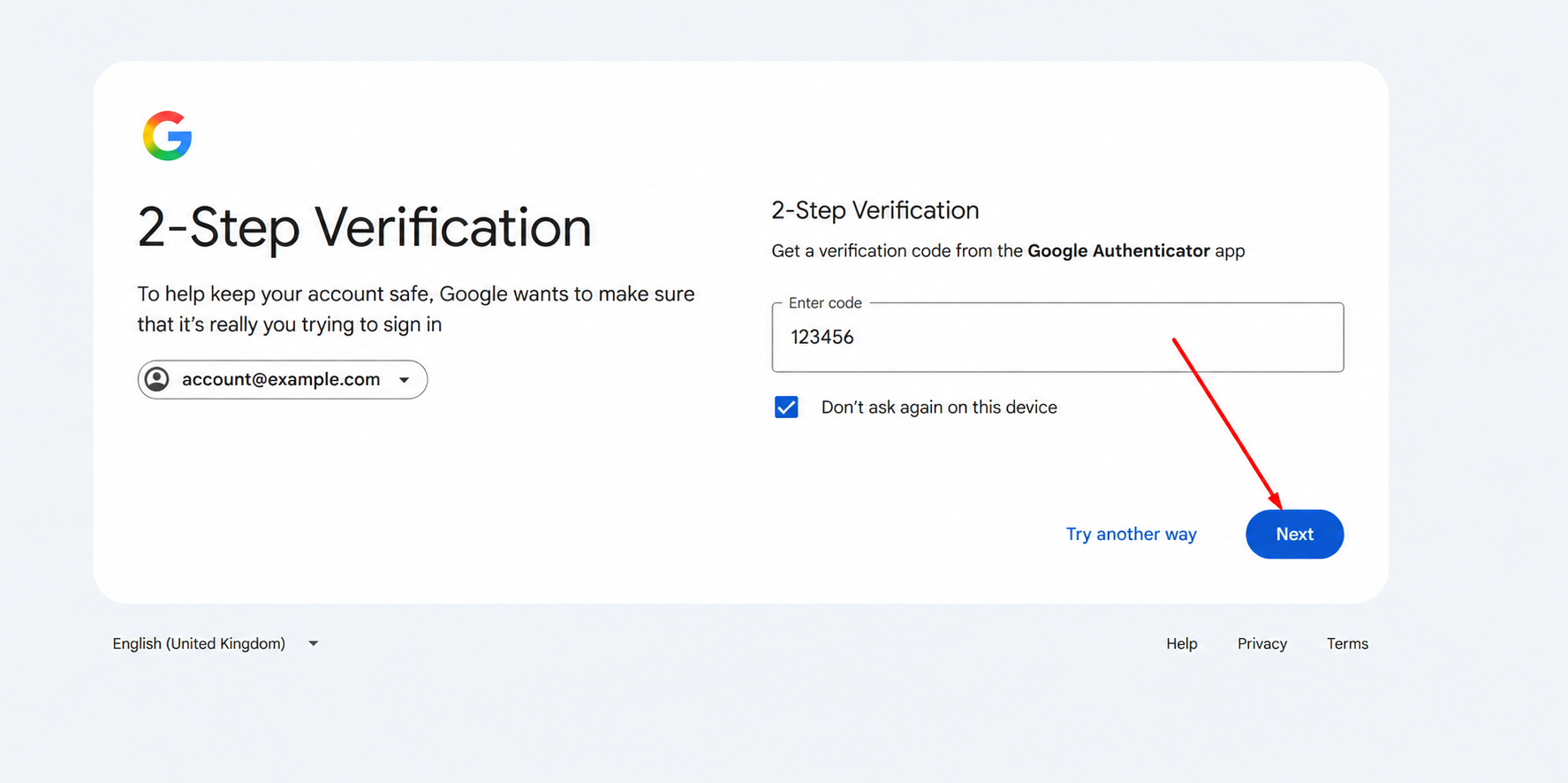
Copy the current six-digit code. Paste it into Enter code on the Google verification screen you left open, then click Next. If the code has expired, generate a fresh code and try again.
Copy the current six-digit code. Paste it into Enter code on the Google verification screen you left open, then click Next. If the code has expired, generate a fresh code and try again. - 6
Open Gemini
Gemini opens after verification. If you are taken to a different Google page, open gemini.google.com again and make sure the delivered account is selected.
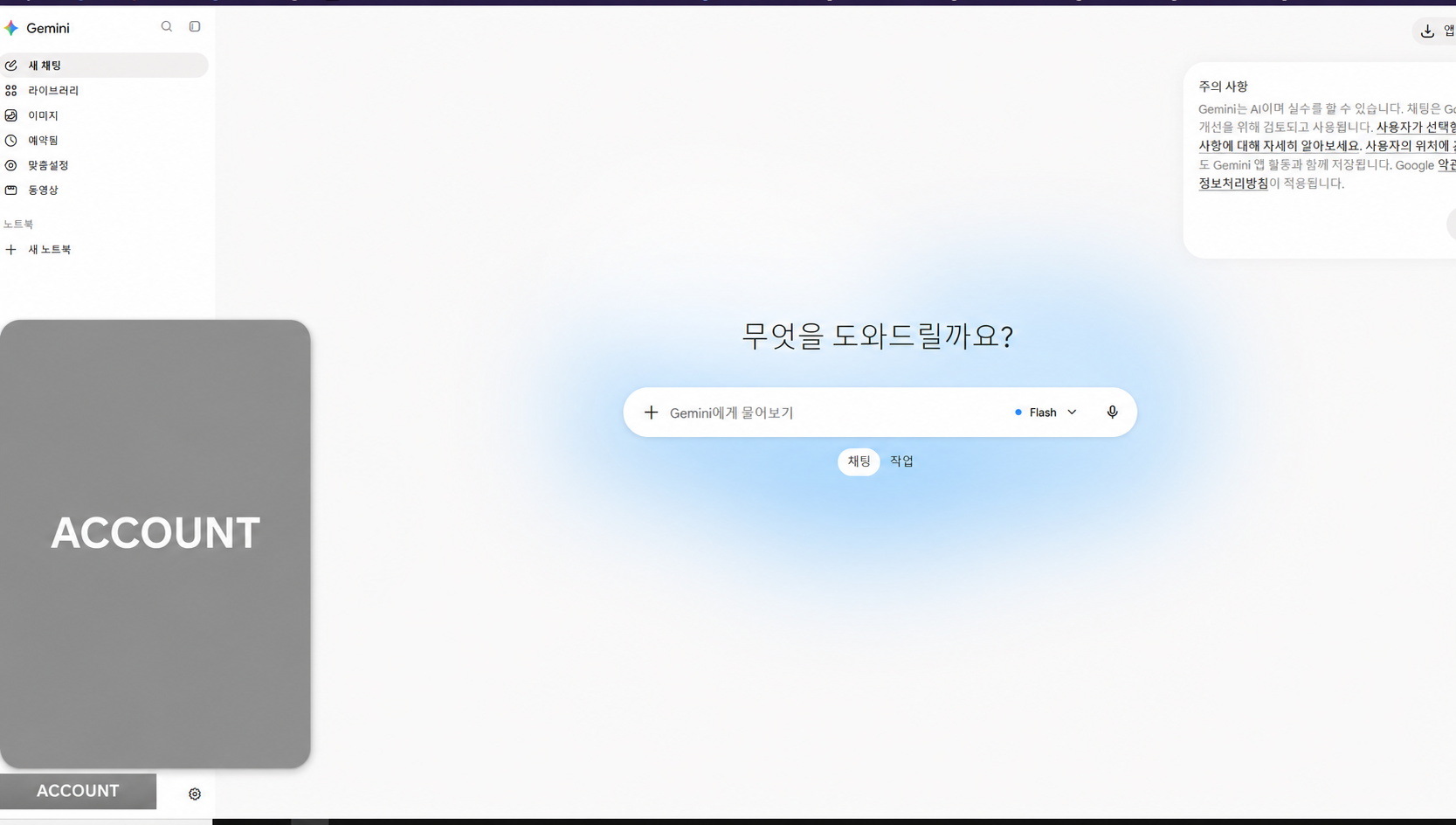
Gemini opens after verification. If you are taken to a different Google page, open gemini.google.com again and make sure the delivered account is selected.
Accounts and codes in the images are examples. Always use your own order details and a current code.
3. Gemini is not supported in your country
This message may appear when your connection is located in an unsupported region, including for users connecting from Russia. It does not necessarily mean the account or password is incorrect.
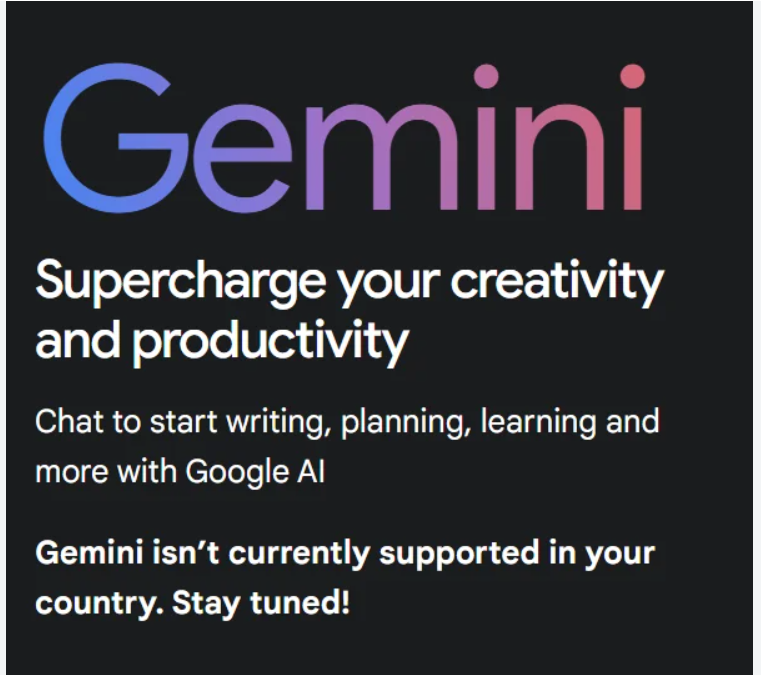
If you use a VPN, check that the connection used for Gemini goes through it, rather than only assuming a browser extension is active. You can try a US or Finland server from a reliable VPN provider. If that server does not work, try another, less busy server and reopen Gemini.
A VPN is not a guaranteed fix. Google’s region and account eligibility requirements still apply; a US IP address alone does not guarantee access. Contact support if the issue continues.
Google’s list of supported countries
The verification code is rejected
Check that you are using the 2FA key for the correct account. Copy the key again without extra spaces and enter a fresh code before it expires. Try an alternative website if needed. If the issue continues, contact support instead of making repeated attempts.
4. Before changing account details
Take your time when updating details; avoid changing the password, 2FA and recovery information one after another. Plan changes step by step within the first two weeks. After each change, check that you can still sign in and store the new details securely.
Waiting two weeks is not an official Google rule or a guarantee against account locks. If you see a security alert or suspicious access, secure the account immediately. Do not remove the old 2FA method until you have confirmed the new one works.
5. Install and activate Antigravity
Follow these steps to sign in to Antigravity on Windows or Mac and complete verification if requested. Screens may vary by app version.
- 1
Download and install Antigravity
Open the official download page. Choose the version suitable for your Windows or macOS computer, finish installation and launch Antigravity.
- 2
Click Continue with Google
Click Continue with Google in the app. The sign-in process opens in your browser.
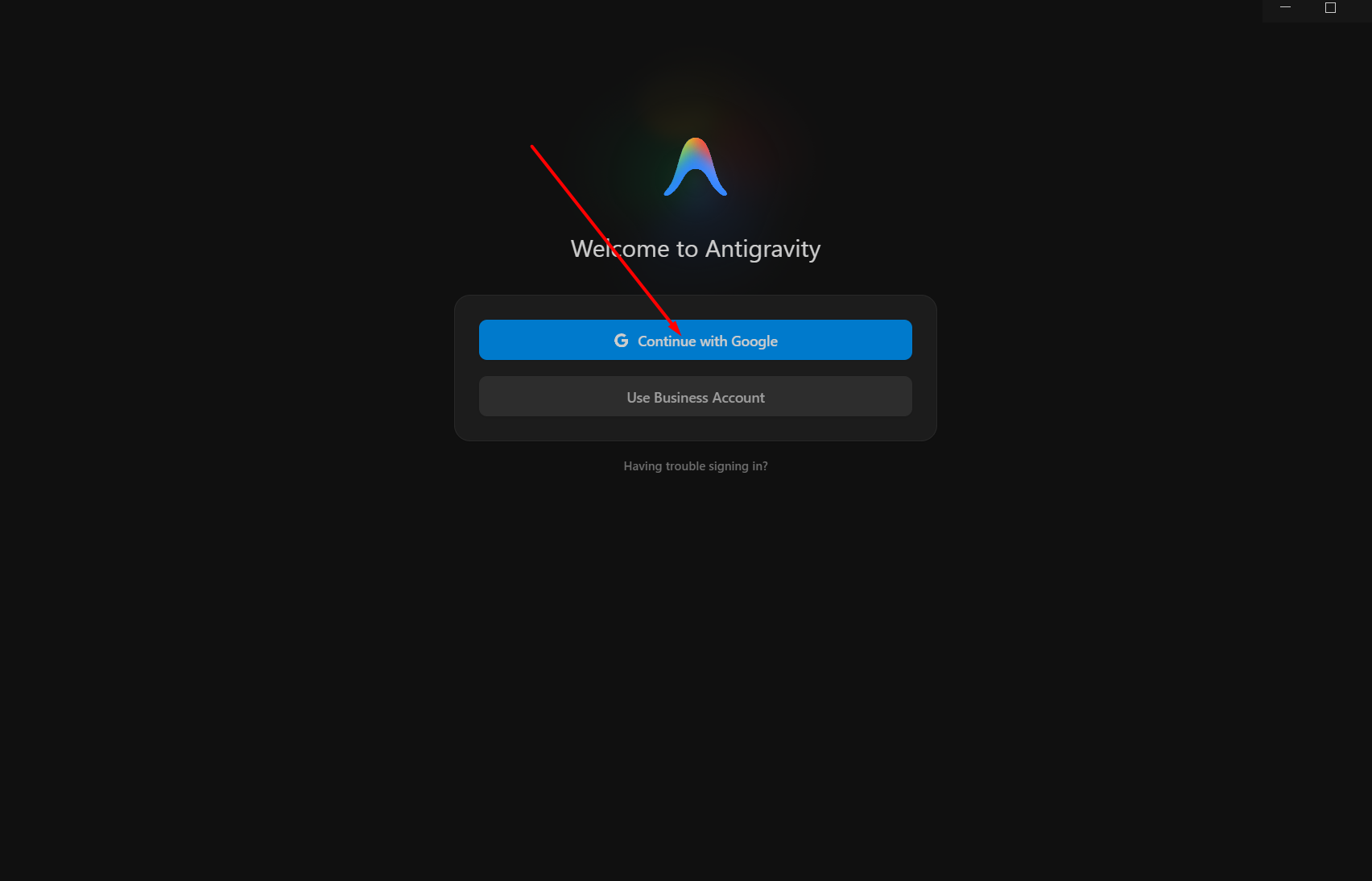
Click Continue with Google - 3
Sign in with the delivered Google account
Enter the delivered email address and click Next. Then enter the delivered password. If another account is already signed in, use Use another account to select the correct one.
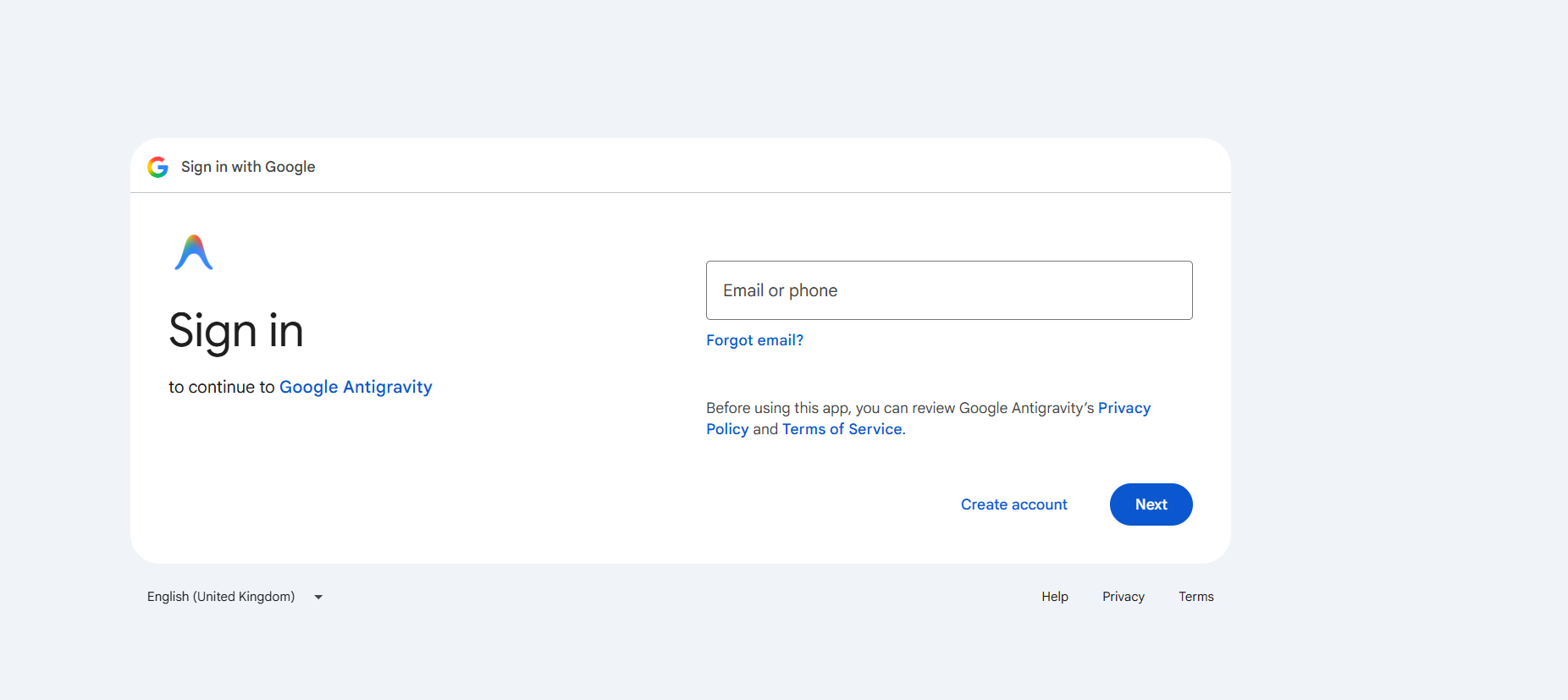
Sign in with the delivered Google account - 4
Complete 2FA verification
Select the Google Authenticator method; if it is missing, click Try another way. Use the delivered 2FA key on 2fa.fun, 2fa.live or 2fa.cn to get a current six-digit code. Enter the code on Google and click Next. Read the key privacy notice above.
Complete 2FA verification Complete 2FA verification Complete 2FA verification - 5
Check the account and click Sign in
Make sure the displayed email matches the delivered account. If you downloaded the app from Google’s official website, click Sign in to continue.
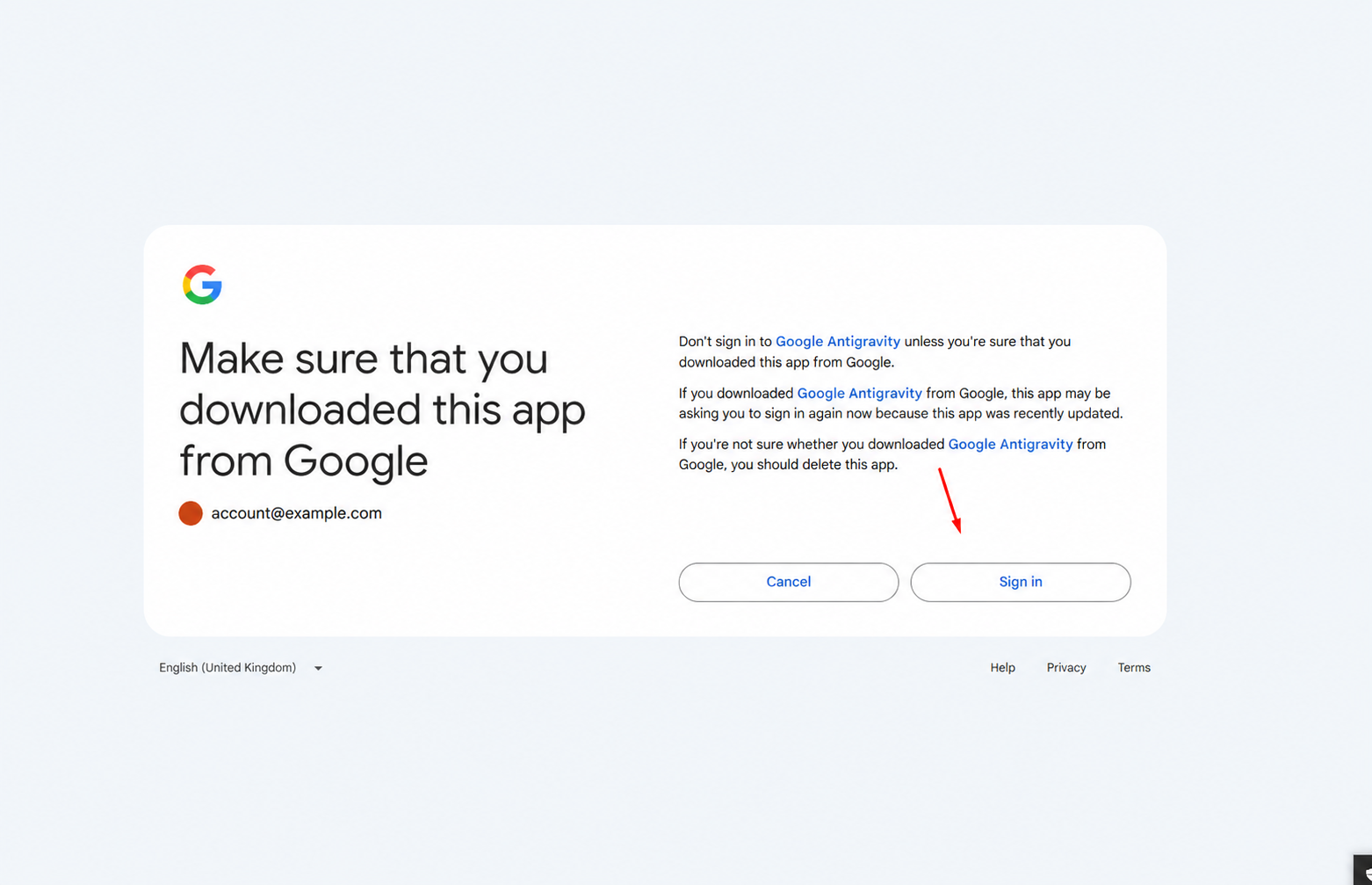
Check the account and click Sign in - 6
Confirm Open in Antigravity
After successful sign-in, if the browser asks to open the app, click Open / Open in Antigravity. This passes the completed browser sign-in back to the app.
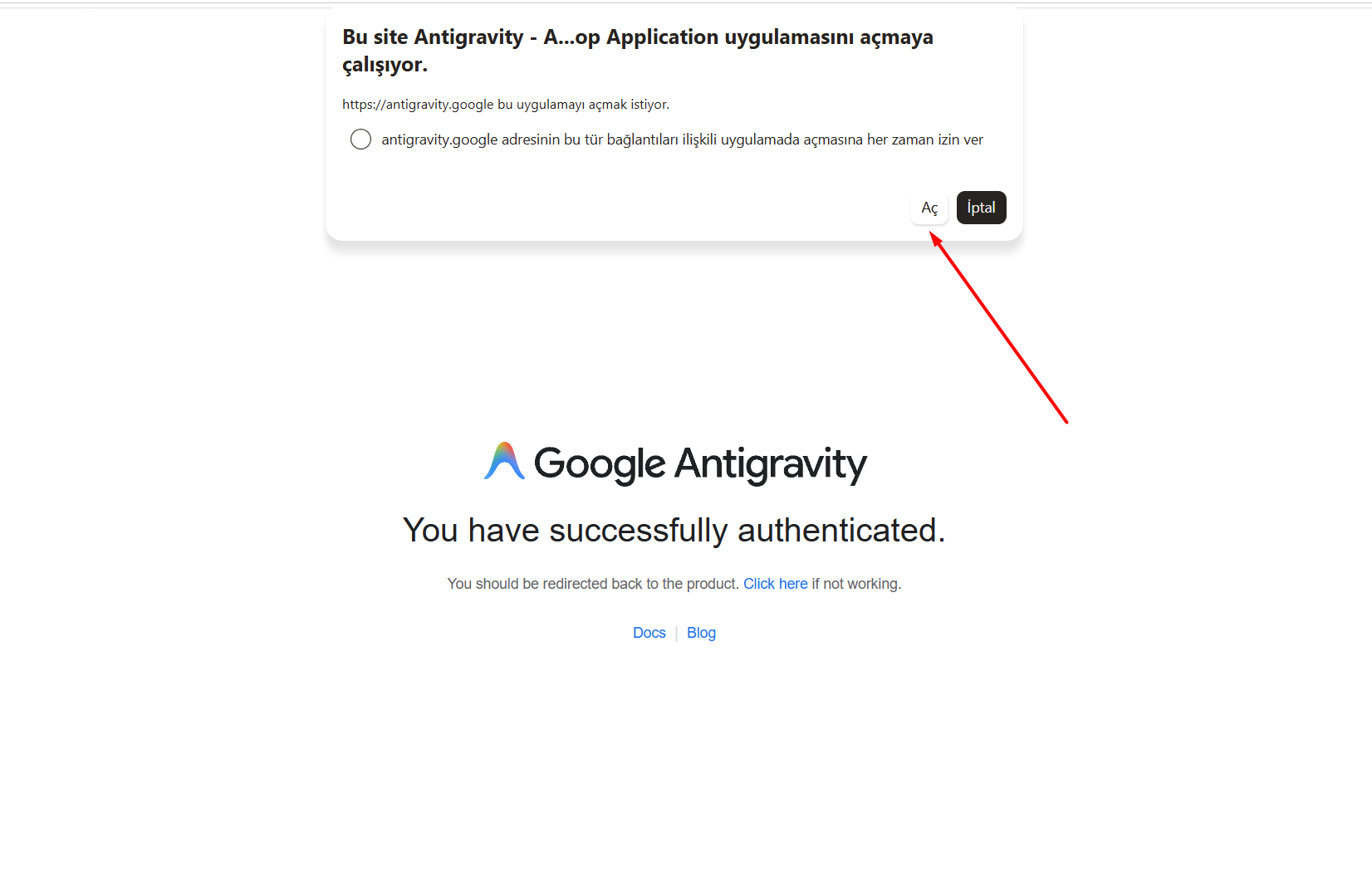
Confirm Open in Antigravity - 7
Click Verify if requested
If “Further action is required to use Antigravity” appears, click Verify. Not every account will show this screen. Follow the verification instructions on the Google page that opens.
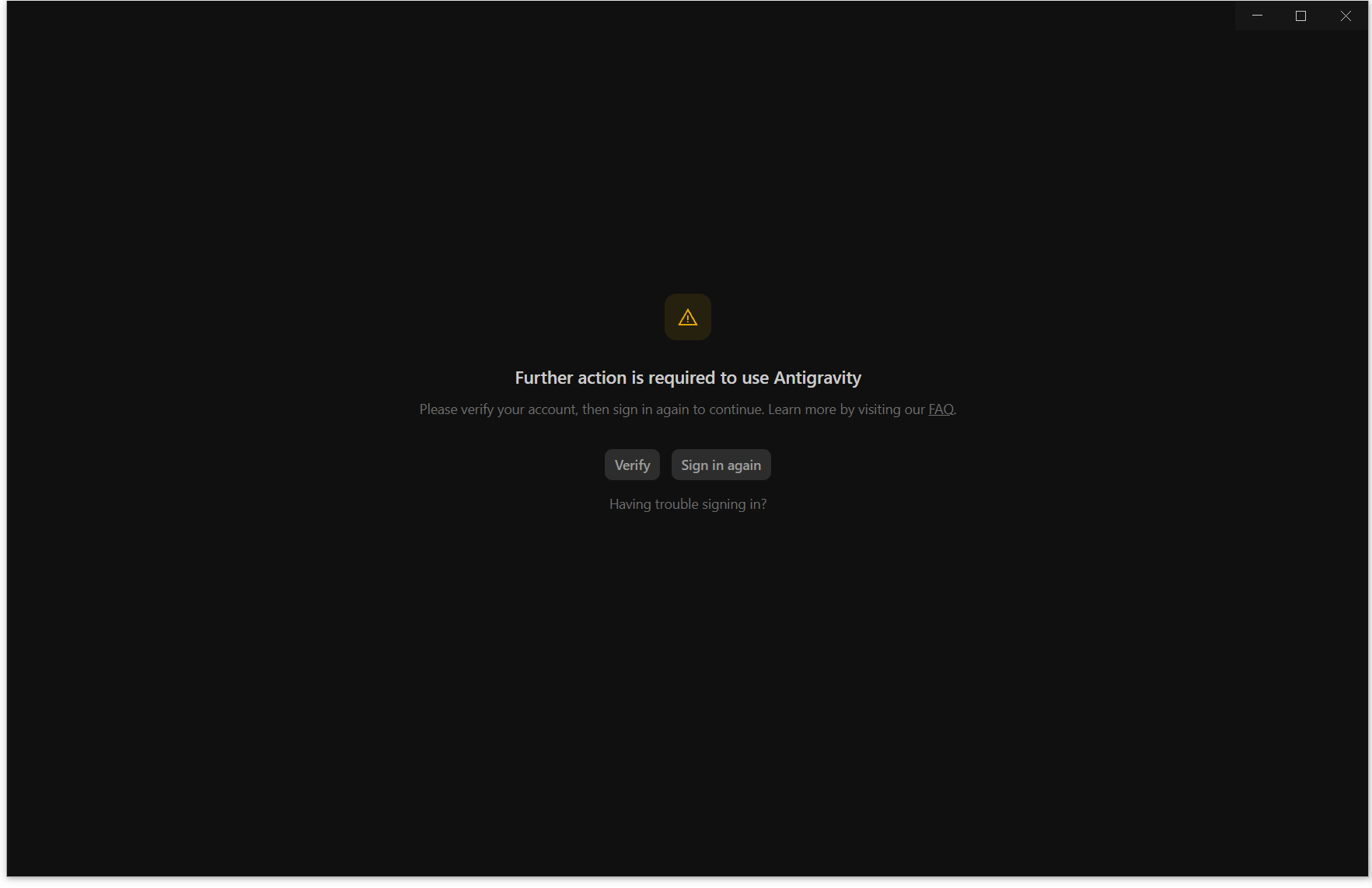
Click Verify if requested - 8
Scan the QR code with your phone
If a QR screen appears, scan the current code on your computer using your phone camera and follow the steps on the Google page. If Google asks you to sign in, use the delivered account. Having another Gmail account on your phone is not enough by itself; the on-screen instructions determine which account is needed. When finished, return to the computer and click Sign in again if requested.
Note for users in RussiaIf the Google account signed in on your phone was created in Russia or is linked to a Russian phone number, use the delivered account on your phone if you encounter verification problems. Check that the account requested by Google is selected. Users outside Russia can also scan the QR code with their phones and follow the on-screen steps. This issue may not be limited to Russian accounts; contact the seller if verification does not complete.
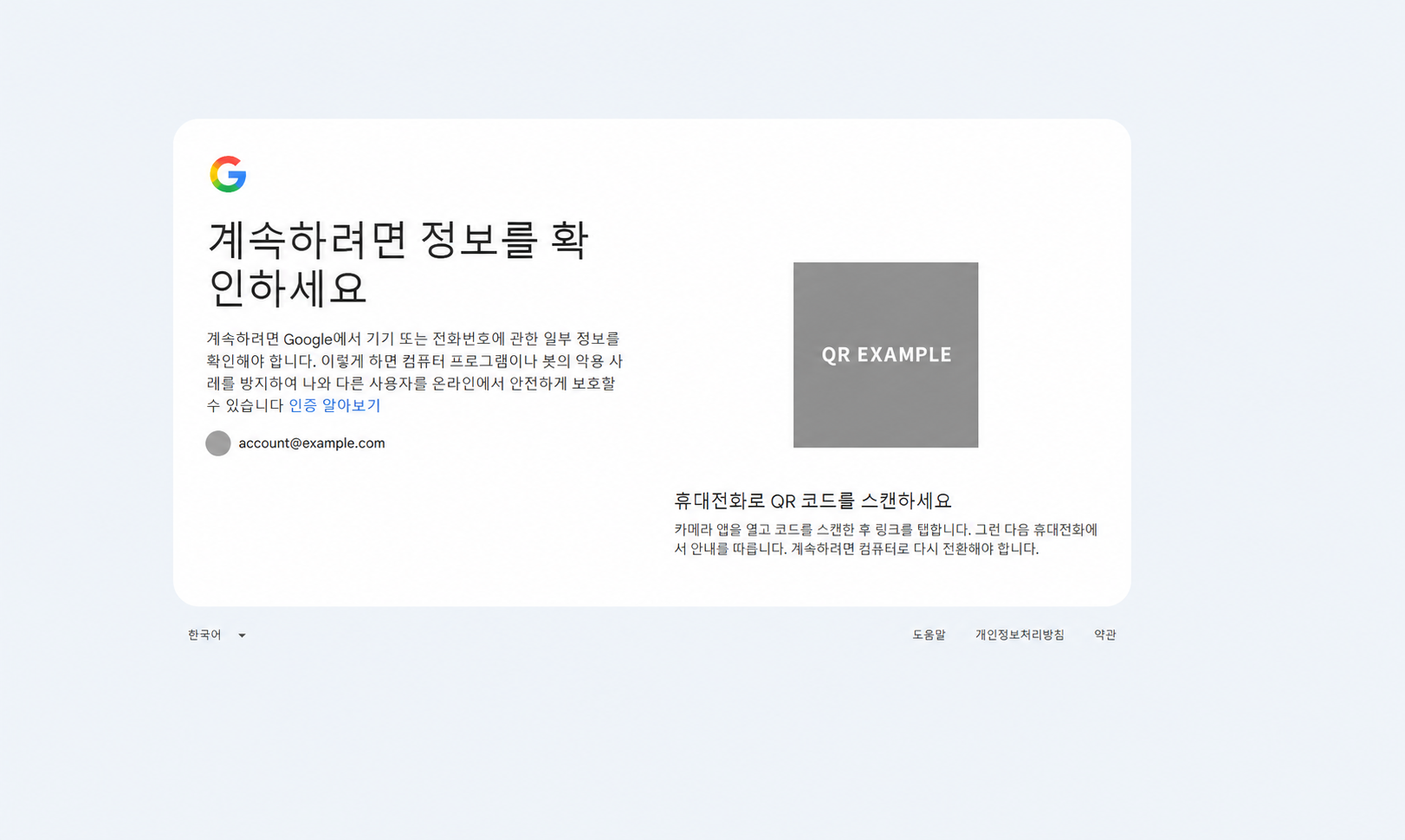
Scan the QR code with your phone
If you get stuck, contact the seller and share the error message. You can ask for step-by-step assistance. Do not post the QR code, password or verification codes publicly; do not assume that having someone else scan the QR code will necessarily verify your account.
Your phone’s connection location may affect verification. A VPN running on your computer does not mean it is also running on your phone. If you use a VPN, check the phone connection too; contact support if a region error persists. A Russian phone number linked to a Gmail account alone does not prove verification will fail. Follow Google’s instructions instead of repeatedly trying different accounts.
Images are examples; account details and the QR code have been concealed. Do not scan the QR illustration on this page.